iSkysoft DVD Copy for Mac Guide |
Want to copy D9 and D5 DVD movies on Mac OS X? iSkysoft DVD Copy for Mac is specially designed for Mac OS X users to lets you copy your DVD movies and remove their protections with just a few click.
iSkysoft DVD Copy for Mac allows you to output DVD folder and directly burn your DVD movies to new DVD discs with no protections. : |
Step 1: Select DVD Source
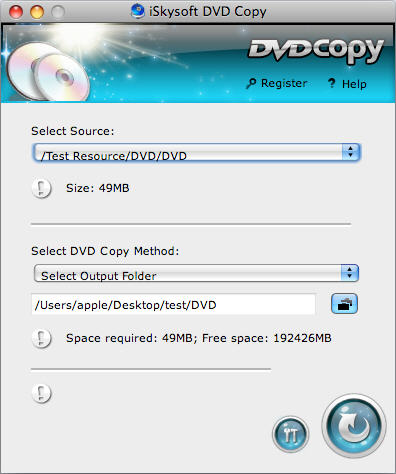
In the "Select Source" field, click  and select "Select source DVD folder". Then browse your computer hard disc and select your DVD movie (either in a folder or from your DVD ROM). and select "Select source DVD folder". Then browse your computer hard disc and select your DVD movie (either in a folder or from your DVD ROM).
|
Step 2: Select DVD Copy Method
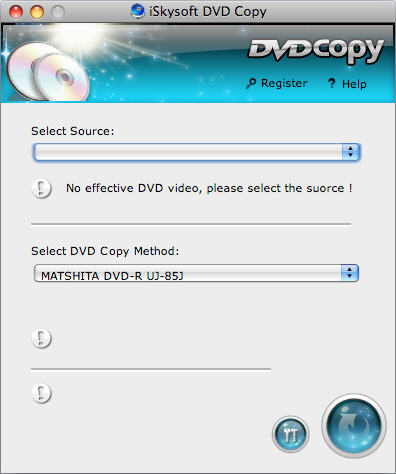
iSkysoft DVD Copy for Mac allows you to copy DVD to a folder on your hard disc or directly burn DVD to a new DVD disc.
In the "Select DVD Copy Method" field, click to select a method to output the selected DVD movie:
If you want to output your DVD movie to a folder on your hard disc, you can select the "Output DVD Folder" option, and specify a directory to save the copied DVD movie.
If you want to directly burn your DVD movie to a new DVD disc, you can just select the DVD ROM where you have inserted a blank DVD disc.
Step 3: Program Settings
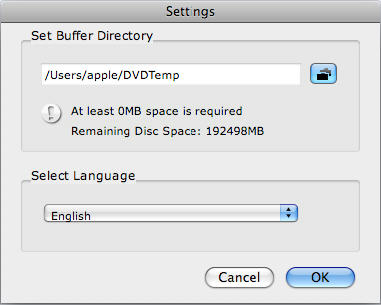
Set Buffer Directory: Specify a directory on your hard disc as the buffer directory to store the temporary files generated during the conversion. We recommend that you select a folder on a hard disc that has relatively big free space.
Select Language: Select an interface language for the program. The currently available languages are English and Simplified Chinese.
Step 4: Start Copying DVD
Click the Start button  to start copying your DVD movie and/or burning it to a new DVD disc. to start copying your DVD movie and/or burning it to a new DVD disc.
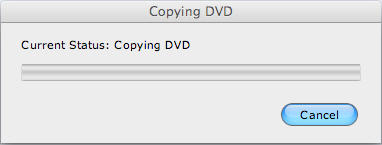
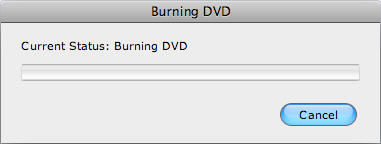
Note: If you are copying a DVD disc from your DVD ROM to a new DVD disc, iSkysoft DVD Copy for Mac will ask you to insert a blank DVD disc when the program gets ready to burn. Then you can just take the original DVD disc out and insert a blank DVD disc.
|