iSkysoft DVD Audio Ripper for Mac Guide |
Want to rip DVD audio to MP3, M4A, WAV, AAC, AC3, and WMA etc on Mac PowerPC or Mac Intel?iSkyosft DVD Audio Ripper for Mac provides a series of powerful settings to listen to your favorite audio tracks on your audio players. The steps below will guide you on how to use this software:
|
Step 1: Download iSkysoft DVD Audio Ripper for Mac and install the program.

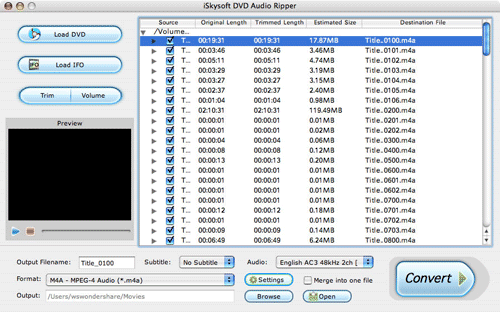
Click the Load DVD button, browse your computer, find the DVD folder of the movie you want to add from your hard disc or DVD-ROM, open your DVD folder, select the VIDEO_TS folder and click OK.
Or, click the Load IFO button, browse your computer, find the DVD folder of the movie you want to add from your hard disc or DVD-ROM, open your DVD folder, open the VIDEO_TS folder, select all the IFO files and click OK.
After you add your movie, you can choose any titles or chapters that you want to convert by ticking the check boxes before them.
|
Step 2: Output Settings
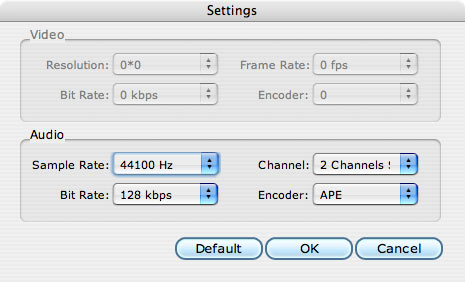
At the bottom of the main window, you can name the output file for the current title/chapter, and select a subtitle to put on your movie, select an audio track. Then finish all the settings including selecting an output format, clicking the Settings button to set the video and audio encoding settings, choose if to merge the selected titles or chapters into one file, and set an output directory to save the output files.
Step 3: Start Conversion
After setting the output settings, you can just click the Convert button to start converting your Movie. You can choose to shut down your computer or open the output folder after conversion so you don't have to sit before your computer waiting for the conversion to finish.
Advanced Options
If you want to edit your movie before converting it, iSkysoft DVD Audio Ripper for Mac provides your with various powerful functions including:
1. Trim DVD Title or Chapter
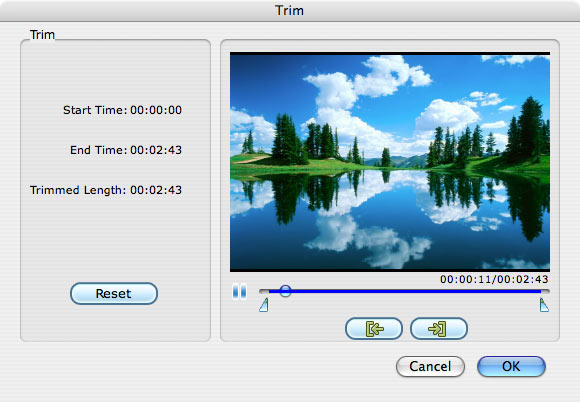
If you want to capture a clip from the current title/chapter, you can click the Trim button to open the Trim window and trim the current title or chapter by dragging the Start Time slider to set the start time, and dragging the End Time slider to set the finish time.
2. Volume DVD Audio
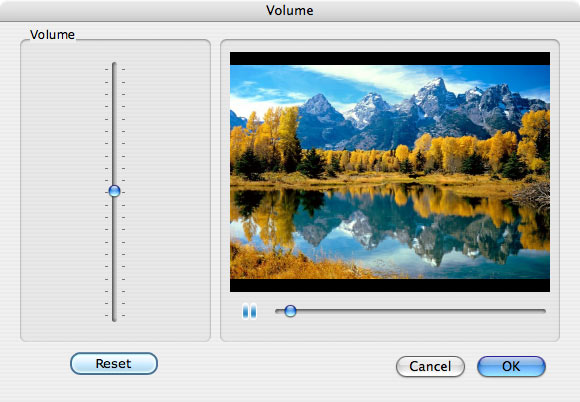
If you want to set the volume of your audio files,you can click the Volume button to volume the audio of the current title or chapter. Just dragging the volume values: 0%,100%.200%.
|